Importing guests.
Bring a spreadsheet in per ticket tier, preview it, then commit.
If your guests are already in a spreadsheet, import them rather than typing them in. Nothing is created until you have seen a preview of exactly what will happen.
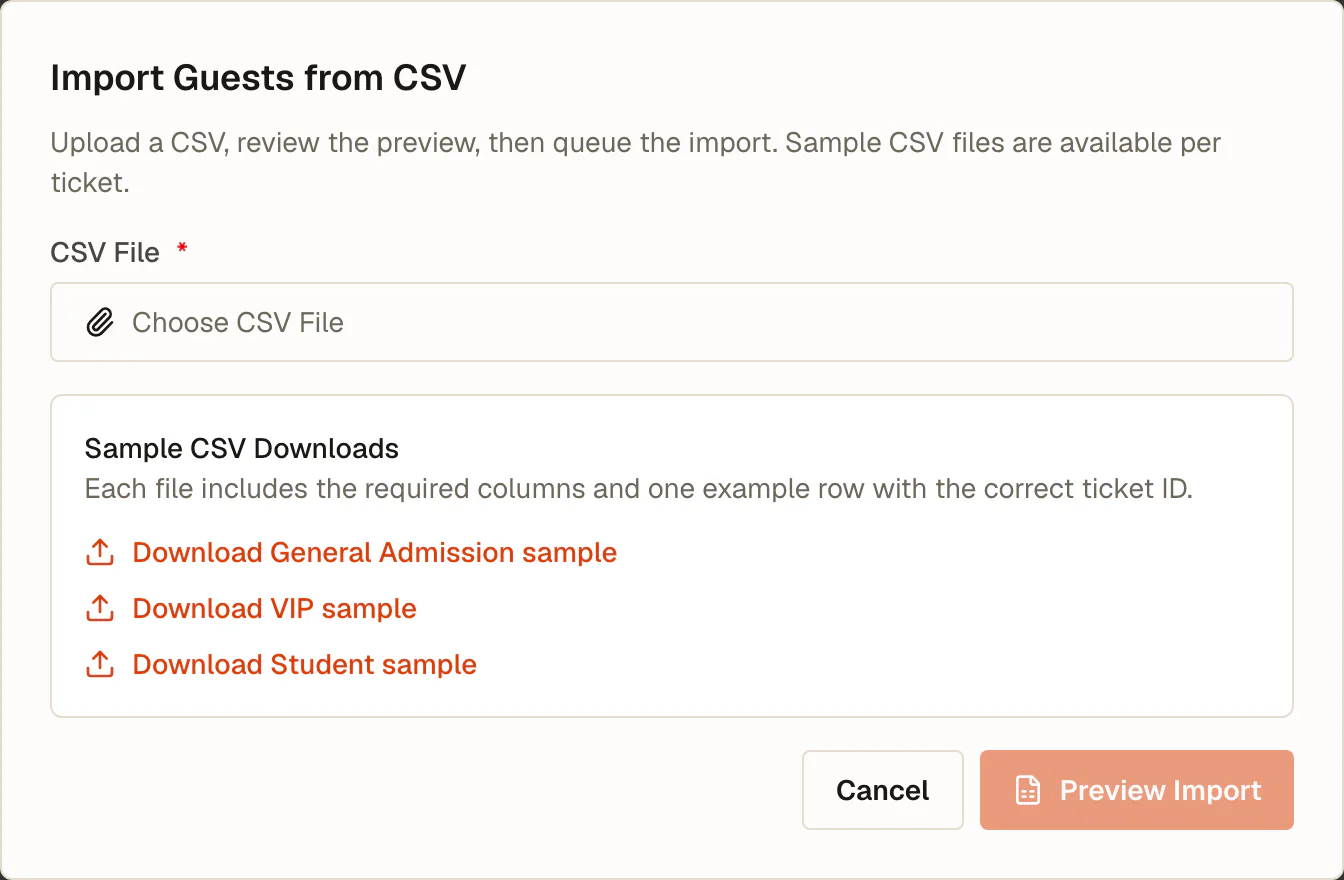
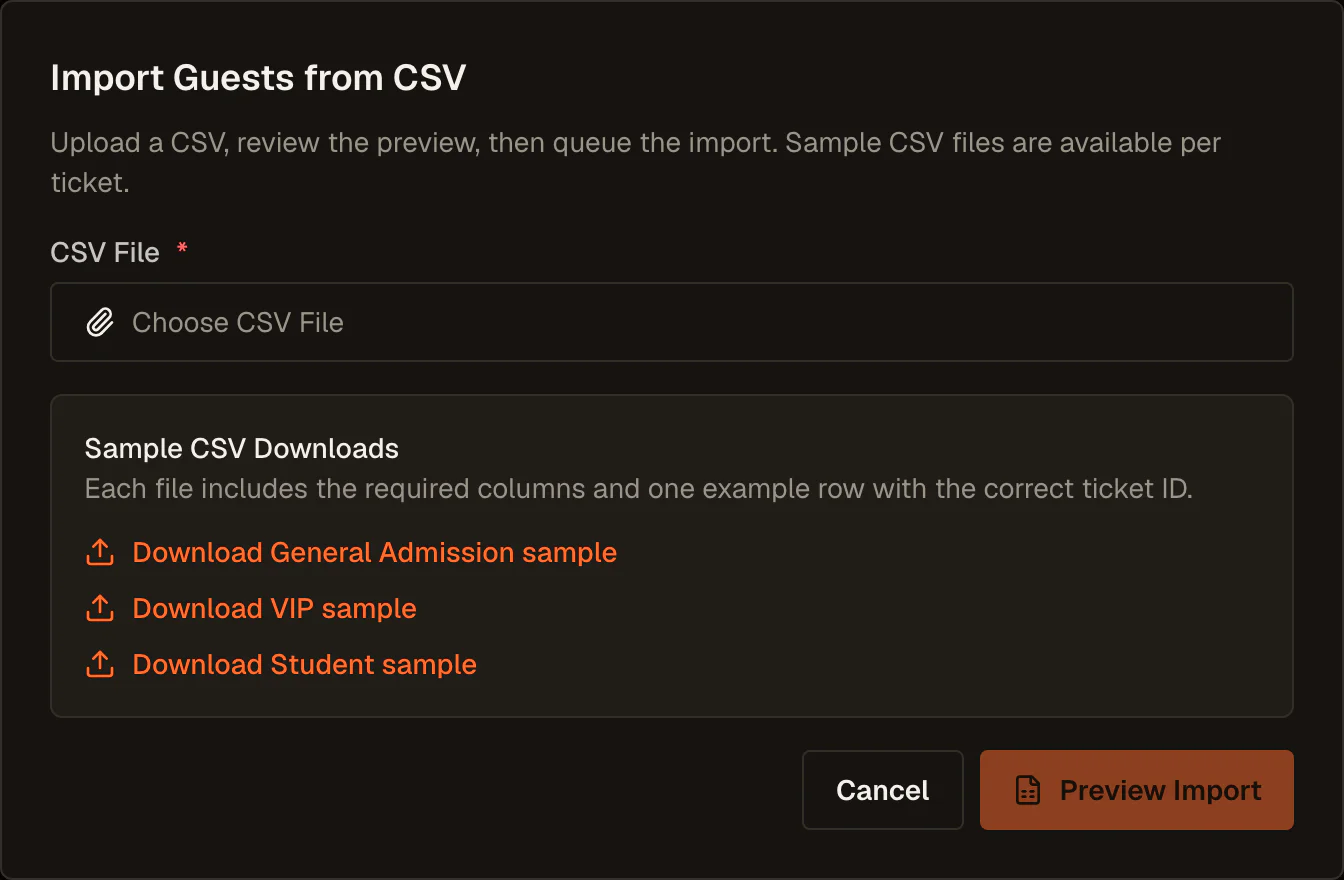
Step 1. Download a sample
From the guest list, open Tools and choose Upload CSV. The dialog offers a sample file for each of your ticket tiers.
Download the one for the tier you are importing into. Each sample has the exact headers the importer expects, the tier's id already filled in, and one example row, so you can see the shape of a valid value before building the whole file.
Samples are per tier because each tier can carry its own fieldset, and therefore expect different columns.
Step 2. Build the file
Every guest import file starts with these eight columns:
| Column | What goes in it |
|---|---|
ticket_id |
The tier's id, pre-filled in the sample |
ticket_type |
The tier's name, for your own readability |
billing_first_name |
First name of the person who paid or is responsible |
billing_last_name |
Last name of the billing contact |
billing_email |
Email of the billing contact |
attendee_first_name |
First name of the person attending |
attendee_last_name |
Last name of the person attending |
attendee_email |
Email of the person attending |
After those come one column per question in the tier's fieldset, keyed by the field key rather than the label.
Each row names its own tier, in the ticket_id column. One file can therefore carry several tiers at once, as long as every row's custom columns make sense for the tier it names. If your tiers ask different questions, one file per tier is simpler to get right.
If the attendee is the person who paid, put the same details in both sets of columns. For a company booking ten seats, the billing columns hold the same contact on all ten rows and the attendee columns hold ten different people.
Step 3. Upload and read the preview
Choose the file and select Preview Import. You land on a preview, and nothing has been created yet.
The preview lists every row as it was understood, with problems flagged: a missing email, an unreadable date, a select answer that is not one of the options. Rows that are fine are shown as fine.
Fix the file and upload again as many times as you need. A preview costs nothing.
Step 4. Dispatch
When the preview looks right, dispatch the import. The guests are created on the chosen tier, each with their own QR code.
After the import
Imported guests behave exactly like guests who registered themselves. They appear in the same list, hold the same tier, scan in the same way, and appear in the same exports. The Registration column shows they were added manually rather than through the event site.
Common problems
"Not enough remaining stock." The tier's stock limit is lower than the number of rows. Raise the limit or split the import.
Answers rejected on a select question. The value must match one of the option values in the fieldset, not the label shown on the form.
No sample files offered. The event has no ticket tiers yet. Create one first.
A row's ticket_id was not recognised. The id must belong to a tier on this event. Take it from that tier's sample file rather than typing it.
Import unavailable. The event is completed or cancelled, which locks guest management.
Last reviewed August 21, 2026