Registration questions.
Reusable question sets you attach to a ticket tier.
Sometimes a name and an email are not enough. Shirt sizes, dietary requirements, company names, emergency contacts: a fieldset is where you define those questions, and a ticket tier is where you attach them.
Fieldsets are reusable
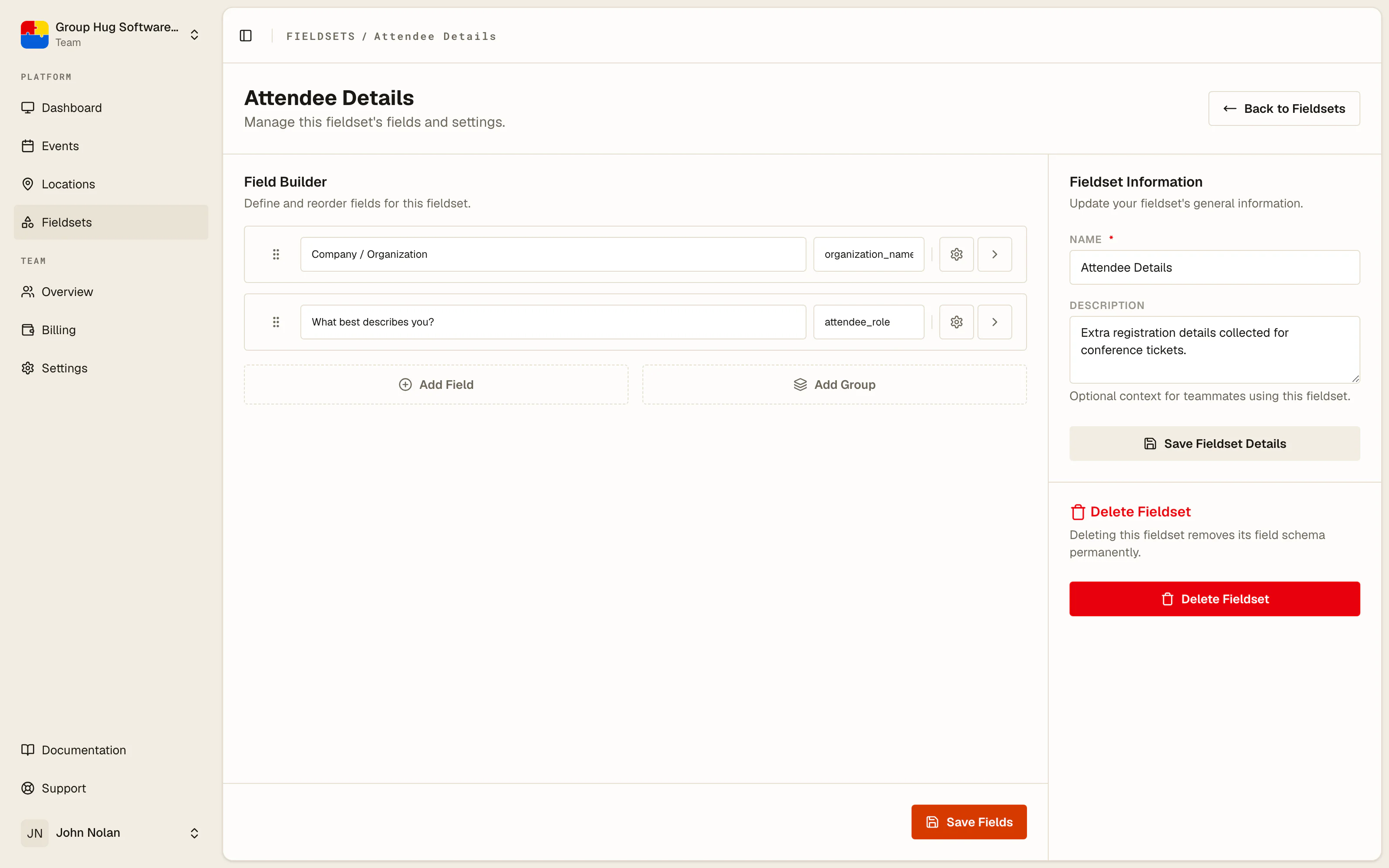
A fieldset lives under Fieldsets in the main sidebar rather than inside an event, because the questions you ask rarely change between events. Build Attendee Details once and attach it to tiers across every event your team runs.
That also means changing a question in one place changes it everywhere it is used, which is worth remembering before you edit one mid-campaign.
Building a fieldset
Choose Create Fieldset, give it a name and a description, then open the Field Builder.
Each question you add has:
- A label, which is what the registrant reads.
- A key, generated from the label, which is the column name in your exports and CSV imports.
- A type, from the nine below.
- A required switch.
- Optional placeholder and help text.
Drag the rows to reorder them. The order here is the order on the registration form.
Field types
| Type | Use it for |
|---|---|
| Text | Short answers: company, job title, team name |
| Textarea | Longer answers: access requirements, questions for the speaker |
| A second email address, validated as one | |
| Single Select | One choice from a list: shirt size, session track |
| Multi Select | Several choices from a list: workshops, dietary flags |
| Yes / No | A straight boolean: first time attending, needs parking |
| Date | A date: date of birth, preferred day |
| Date & Time | A date and a time together |
| Time | A time on its own: preferred arrival slot |
Single and multi select ask you for the options. Give each one a label people read and a value that goes into your data.
Attaching a fieldset to a tier
Open a ticket tier and choose the fieldset from the Fieldset dropdown. Everyone registering for that tier answers those questions.
Different tiers can carry different fieldsets, or none at all. A common pattern is no fieldset on general admission and a short one on VIP, where you actually need the extra detail.
Where the answers go
Answers land on the guest record and stay attached to that guest.
- On the guest list, open a guest and choose Edit Guest to read or correct their answers.
- In a guest sheet export, each fieldset question becomes a column, keyed by the field key.
- In a guest import, the same keys are the column headers, so a spreadsheet exported from one event imports cleanly into another using the same fieldset.
Editing answers after registration
Someone will pick the wrong shirt size. Open the guest from the guest list, choose Edit Guest, and correct the answer there. The change is immediate and shows up in the next export.
Last reviewed August 21, 2026