The guest list.
Search, filter, and read a single guest record.
The guest list is the one place everyone coming to your event appears, however they got there. Registrations from your public page, imports from a spreadsheet and people added at the desk all land in the same table with the same fields.
Reading the counts
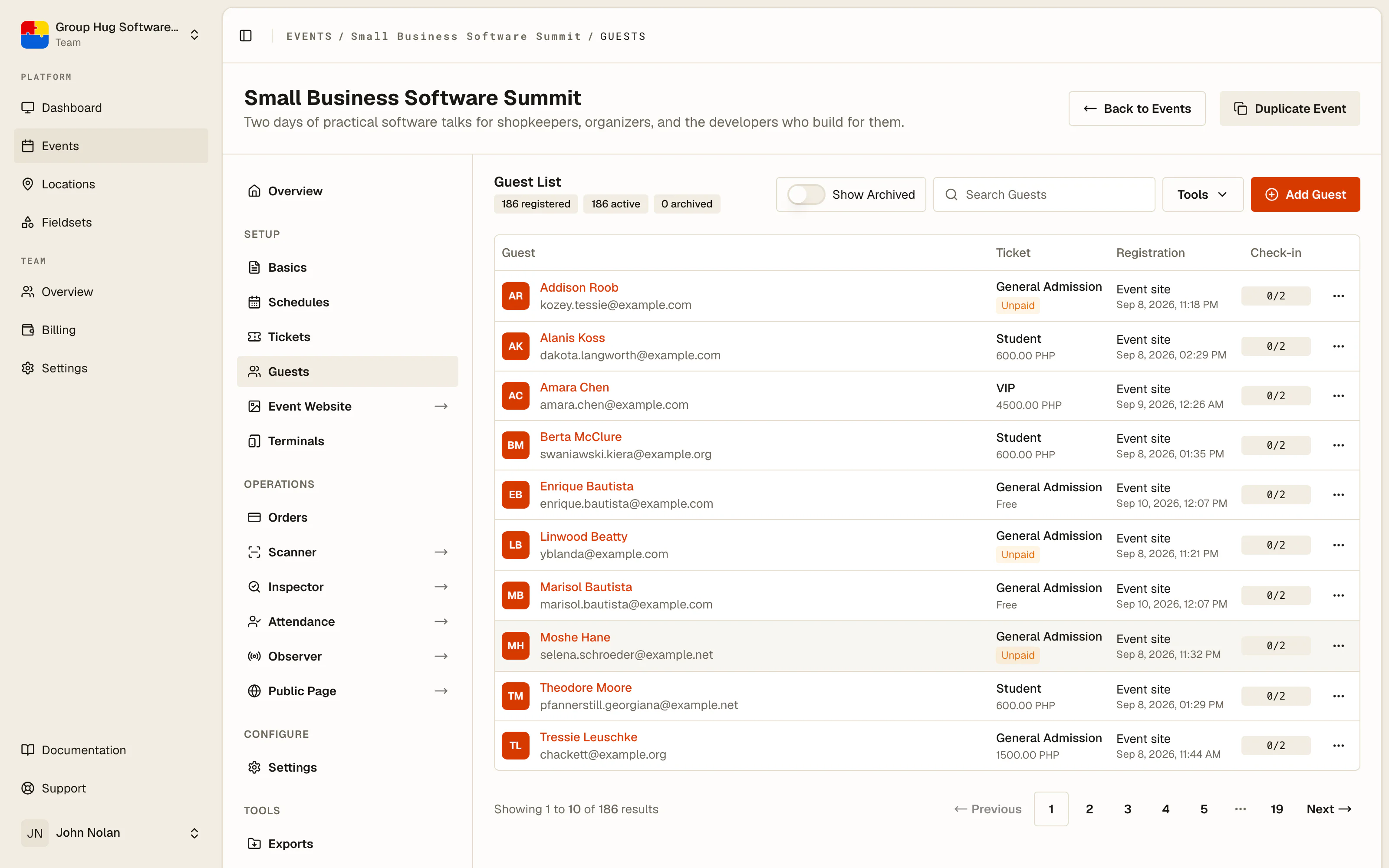
Three badges sit above the table.
Registered is everyone who has ever been on this list. Active is everyone currently on it. Archived is the difference: guests you have set aside without deleting.
The columns
Guest is the attendee's name and email address. This is the person attending, which is not always the person who paid.
Ticket is the tier they hold. One tier per guest, always.
Registration is how and when they arrived: through the event site, or added manually.
Check-in shows whether they have been scanned in, and for a multi-schedule event, which sessions they have attended.
Searching
The search box matches names and email addresses. It searches the whole list, not just the page you are looking at, which matters when you are standing at a desk with someone in front of you.
Show archived brings archived guests back into the table. Leave it off day to day and turn it on when you are looking for someone you set aside.
What a guest record holds
Open a guest to see everything attached to them:
- Attendee details. Name, email, and the answers to any registration questions on their tier.
- Billing information. The contact who paid, along with the ticket and payment details on file. For most guests this is the same person. For a company booking ten seats, it is not.
- Badge actions. Preview, download or send this guest's ticket from one place.
- Attendance. Every check-in they have collected, with the time and the terminal.
Adding a guest by hand
Add Guest creates a guest directly, which is the box-office flow: someone turns up without a ticket, you take payment in the room, you put them on the list.
The dialog asks for billing information first, the contact and payment details, then attendee details, the person actually coming. Choose the tier and save. They get a QR ticket like everyone else.
Amount Paid is entered in your currency's minor units, like a ticket price, so an amount of 1,500 is entered as 150000. The field label names the unit for your billing currency, and the field reads your figure back as money while you type it. Leave empty or 0 to record payment later.
Tools
The Tools menu holds the bulk actions:
- Upload CSV starts a guest import, and is where the per-tier sample files live.
- Exports opens the exports tool for QR archives and guest sheets.
- Broadcast Tickets emails every billing contact their tickets in one message. See tickets and badges.
Last reviewed October 6, 2026