Ticket tiers.
Price, capacity, and the sessions a tier admits its holder to.
Every guest holds exactly one ticket tier. A tier carries the price, the capacity, the questions asked at registration, and the sessions the holder is admitted to. Free events have tiers too.
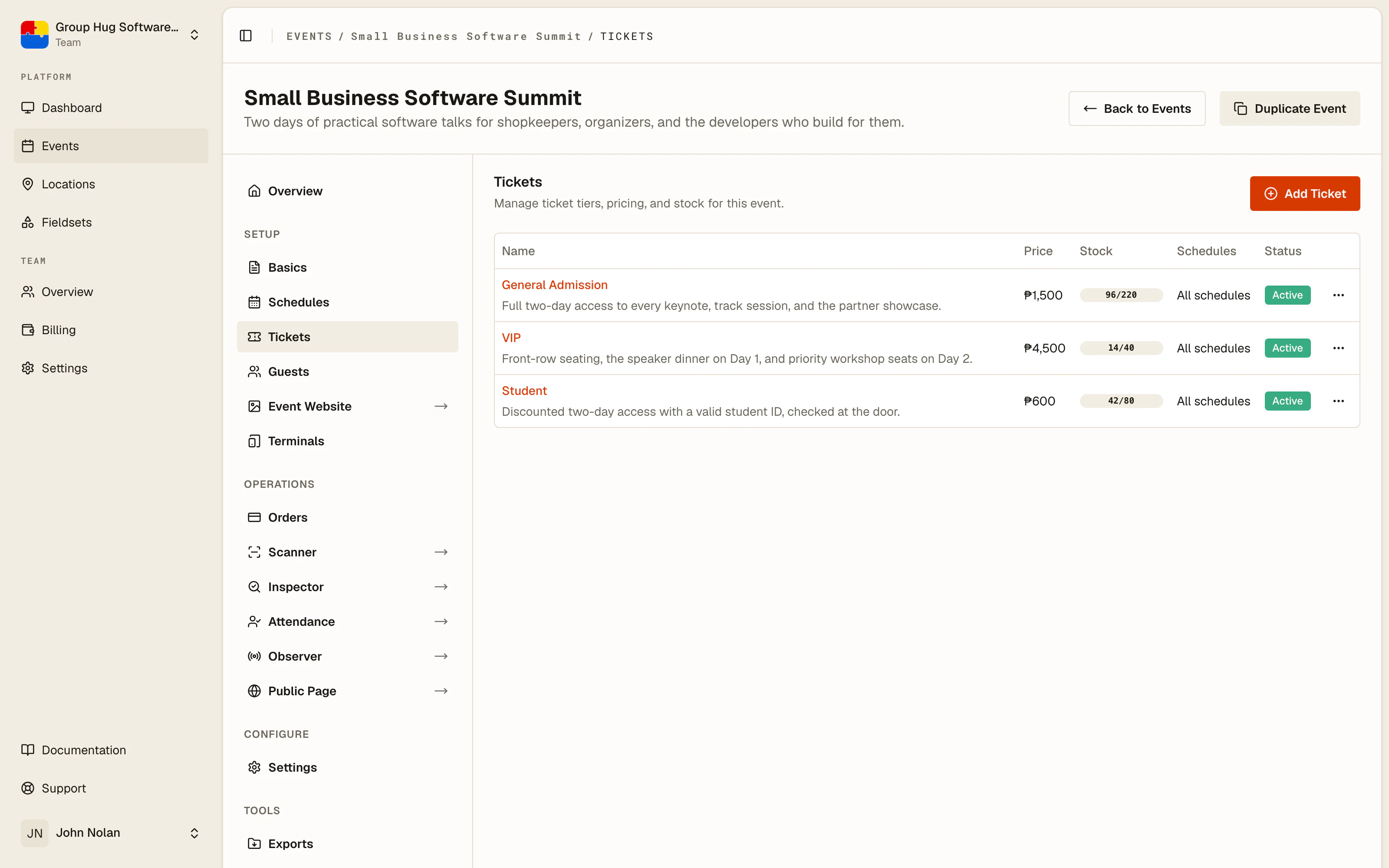
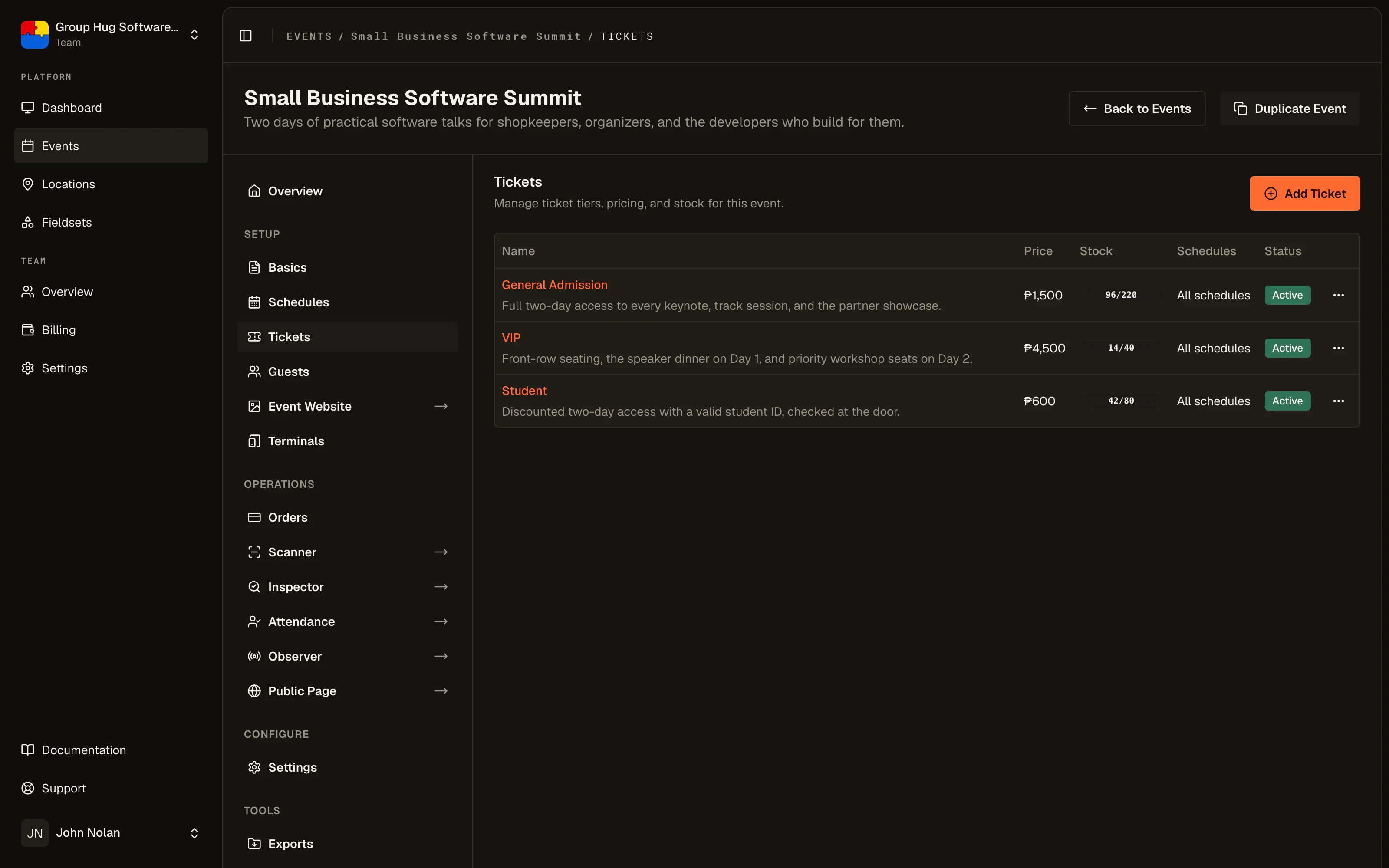
Creating a tier
Open Tickets from the Setup group and choose Add Ticket.
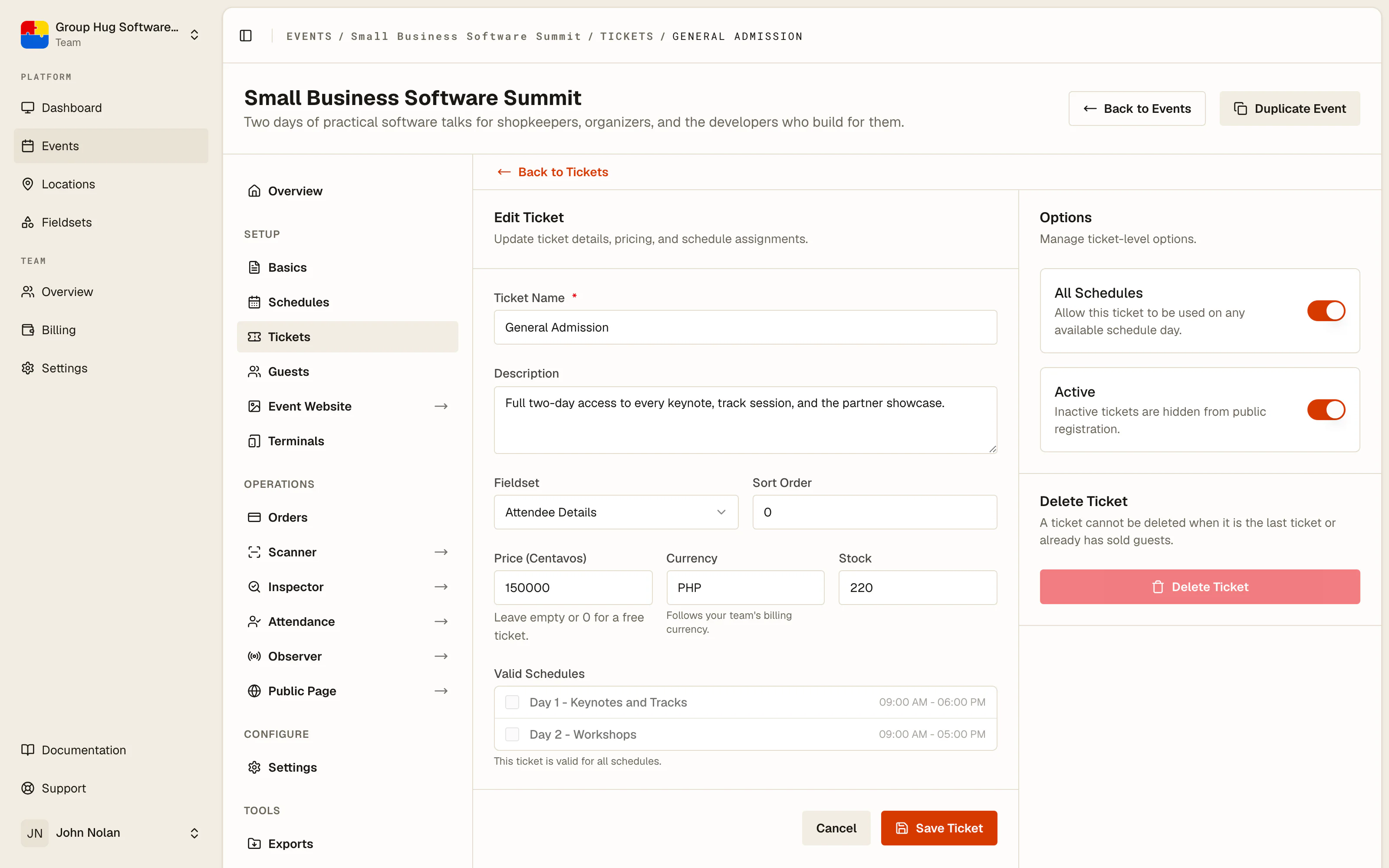
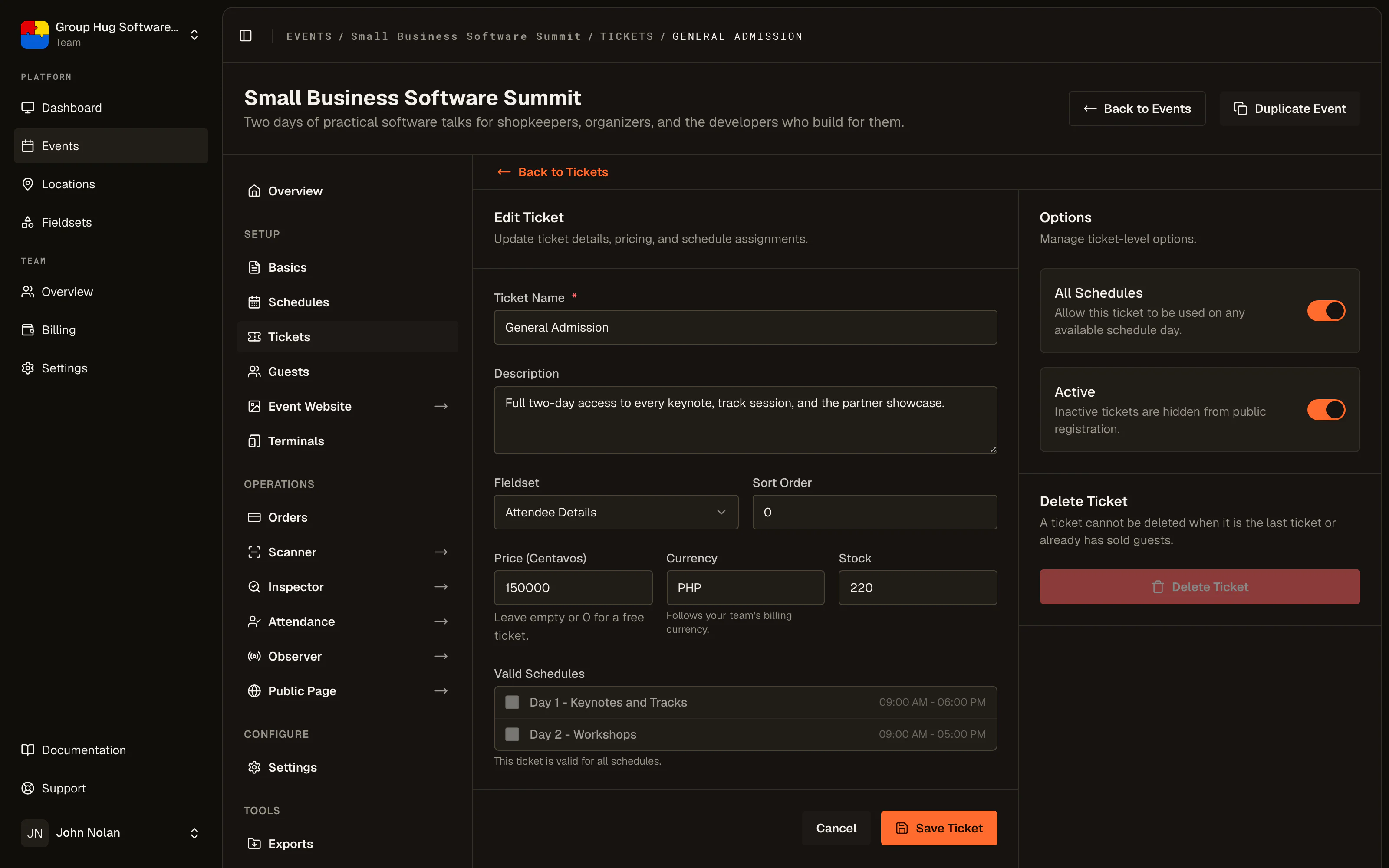
Name is what appears on the public page, in the confirmation email, and on the printed badge. Keep it short and self-explanatory: General Admission, VIP, Student, Day 2 Only.
Description is the small print underneath: what the tier includes, who it is for, what it does not cover.
Price is entered in the currency's minor units, so a price of 1,500 is entered as 150000. The field label names the unit for your team's billing currency. Leave it empty or enter 0 for a free tier.
A price needs a currency, and a team gets one by activating payments. Until you do, the price field will not take anything above zero and a tier can only be free. See paid tickets and payments.
Currency is not yours to pick here. It follows your team's billing currency, chosen once when you activate payments, and the field shows it read-only. Until you activate, the field itself reads ..., with Activate payments to set currency beneath it.
Stock is the capacity limit for this tier. Leave it empty for unlimited. Set it and registration for that tier stops once the count is reached, while your other tiers keep selling.
Sort order decides the display order, lowest first. Put the tier you most want sold at the top.
Fieldset attaches a set of registration questions to this tier. VIPs can be asked something general admission is not.
Valid schedules
A tier decides which sessions its holder may be checked in to.
Leave all schedules on and the tier admits the holder to everything. That is right for a single-session event and for an all-access pass.
Turn it off and choose the specific schedules instead. This is how a Day 2 Only tier works: bind it to the day two schedule, and a day-two ticket scanned on day one is refused at the door with the reason shown on the terminal.
Active and inactive
The active switch controls whether the tier appears on your public event page.
Turning a tier inactive hides it from new registrations without touching anyone who already holds one. Their tickets stay valid and they still scan in normally. Use it to close early-bird pricing, to retire a tier mid-campaign, or to prepare a tier before you want it visible.
Deleting is a different thing entirely, and is not the way to stop selling. A tier cannot be deleted once guests hold it, and an event cannot be left with no tiers at all, so the inactive switch is the only safe way to retire one.
Common setups
One free tier. A meetup or community event. Price 0, no stock limit, all schedules.
Early bird then regular. Two tiers at different prices. When early bird runs out, either its stock limit closes it or you switch it inactive, and regular carries on.
Tiered pricing for one room. General admission, VIP and a supporter tier at three prices, all valid for the same schedule. What differs is price and what the description promises.
Day tiers plus all-access. For a multi-day event: one tier per day bound to that day's schedule, plus an all-access tier with all schedules on.
Race categories. 5K, 10K and 21K as three tiers, each with its own stock limit so a distance closes when it fills while the others keep going.
Last reviewed September 10, 2026