The door desk.
Check people in by name, fix a scan, watch the room fill up.
Not every guest arrives with a scannable ticket. The door desk handles everyone else: dead phones, wrong email addresses, names on a list, and the scan that should not have happened.
Opening it
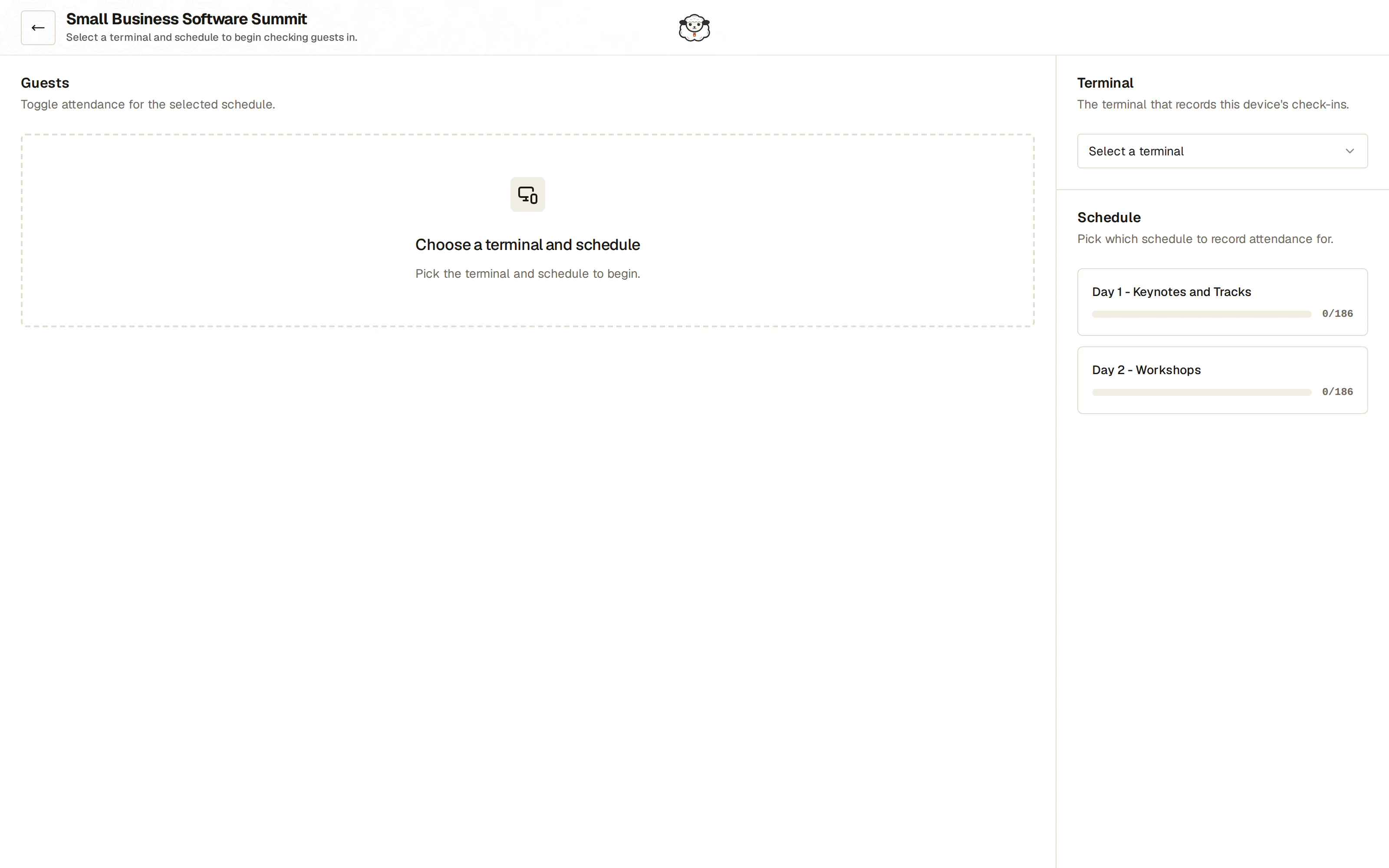
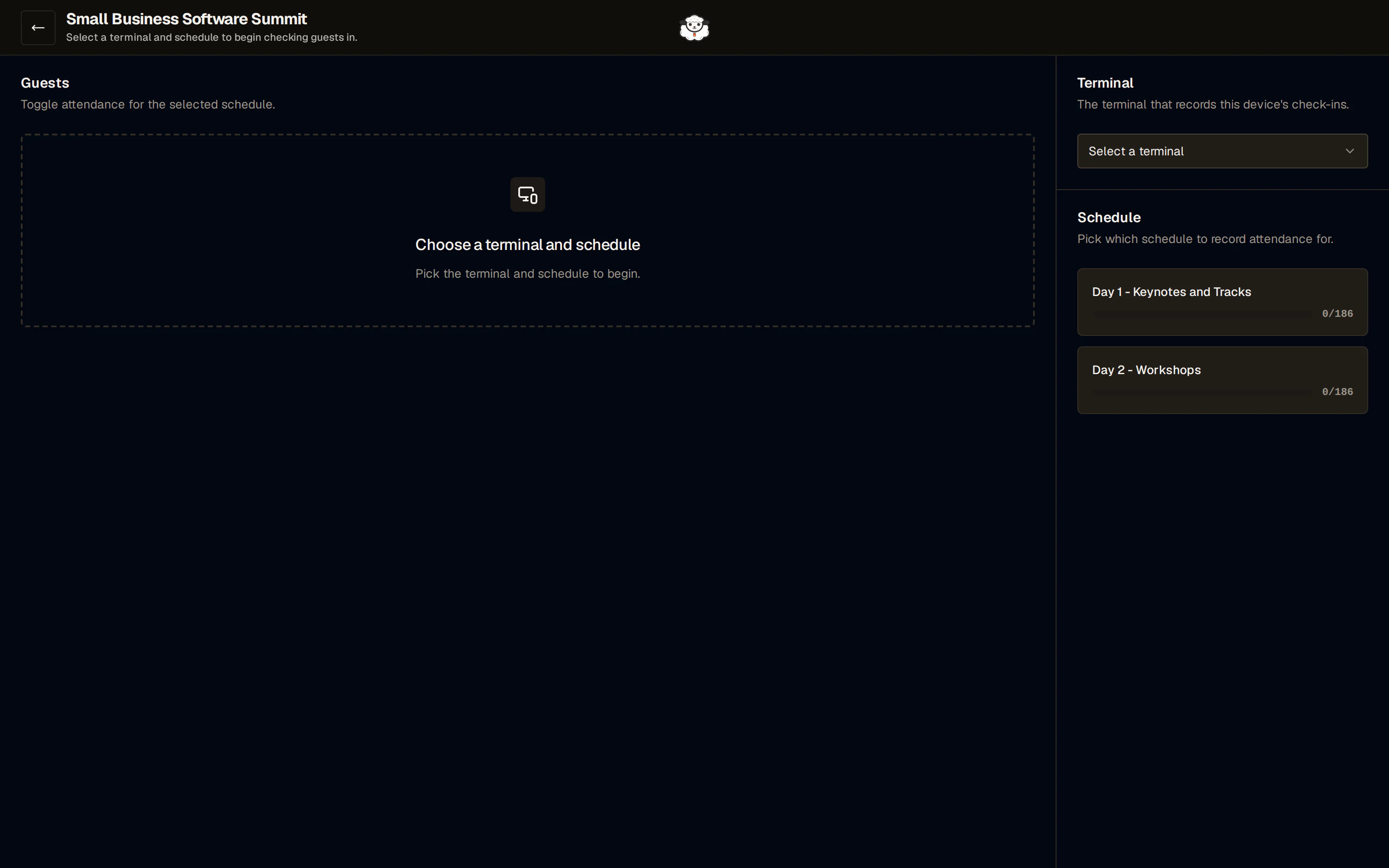
From the event sidebar, under Operations, choose Attendance. It opens as a full-screen page of its own (in a new tab on phones).
Pick the schedule you are checking people into. The page then lists that schedule's guests with their check-in state.
Checking someone in by hand
Search for the guest by name or email, and check them in.
The result is identical to a scan: an attendance record against that guest, that schedule, and the terminal you are recording as. Nothing about a manually checked-in guest is second class, and they appear in every count and export the same way.
This is the right tool when:
- the guest cannot find their ticket email
- their phone is dead, or the screen is too damaged to scan
- the code will not read and you have a queue behind them
- they registered thirty seconds ago and the scanner's manifest has not caught up
Fixing a check-in
Two corrections are available on an existing attendance record.
Change the time. For when the record was made late, or a batch was checked in after the fact and you want the numbers to reflect when people actually arrived.
Change the terminal. For when someone was scanning on the wrong terminal setting and you want the attribution corrected.
Removing a check-in deletes the attendance record for that guest and that schedule.
The live feed
The Observer page, also under Operations, is the view for whoever is running the event rather than working the door.
It shows:
- Live stats. Check-ins, failure count and error rate as they happen.
- The live feed. Scan-by-scan activity, with the guest, the terminal and the result, including refusals.
- The leaderboard. Terminal ranking by successful check-ins.
Filter it by terminal and by schedule to isolate one door or one session.
Watch the error rate rather than the check-in count. A door with a climbing failure rate usually means a volunteer has the wrong schedule selected, and that is a thirty-second fix if you notice it in the first five minutes.
Getting the attendance list out
From the door desk you can download the attendance for the selected schedule as a CSV, with columns for first_name, last_name, email, ticket and checked_in_at.
That is the file to hand a timing provider, a sponsor, or your own records at the end of the night. For everything across all schedules at once, use the guest sheet export, which includes a check-in column per schedule.
Last reviewed October 7, 2026