Exports.
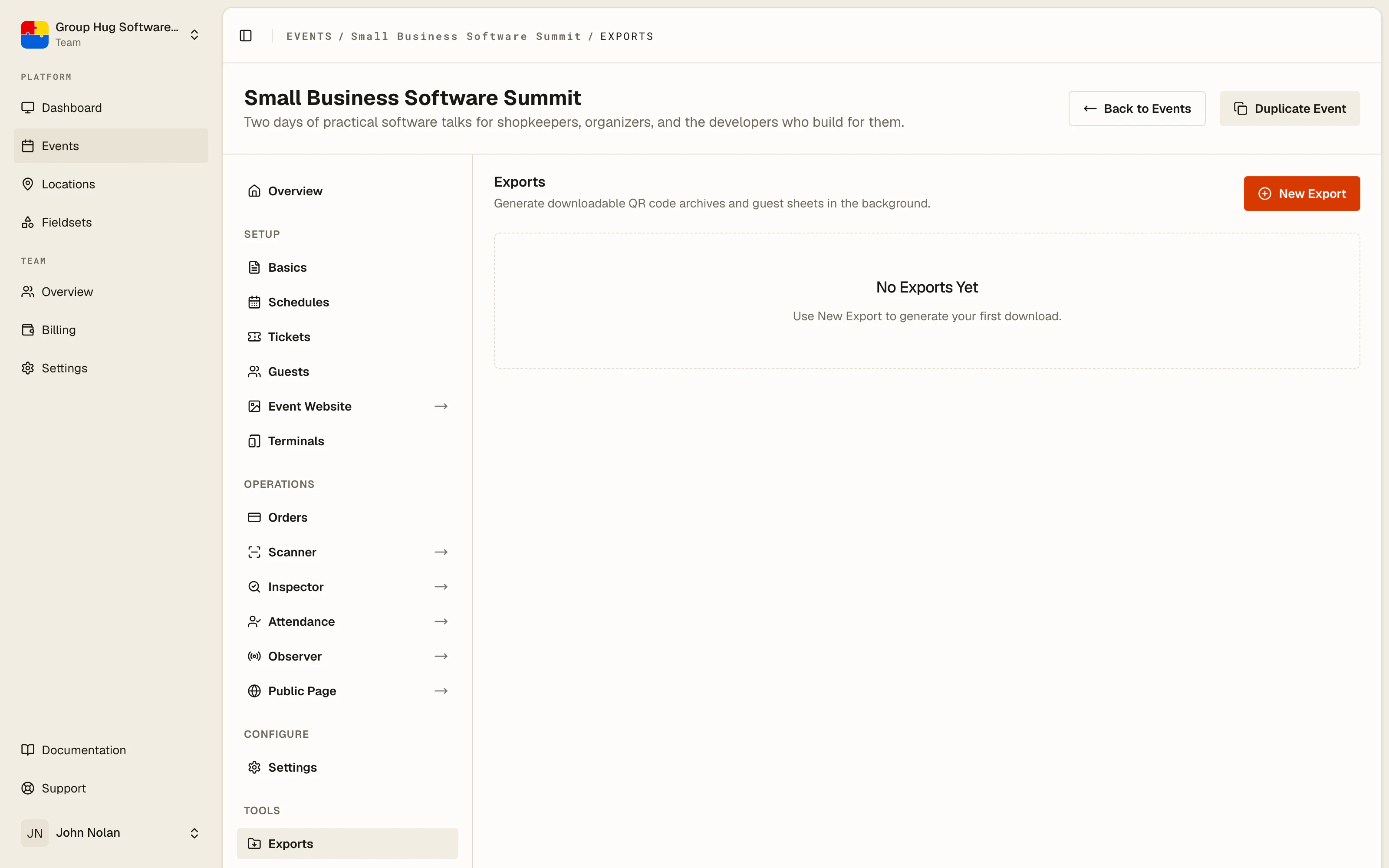
Queue QR images and guest sheets, then download the file.
Exports pull your event's data out as files: QR code archives for a printer, guest sheets and order sheets for a spreadsheet. They are generated in the background, so a large event does not tie up your browser.
Opening it
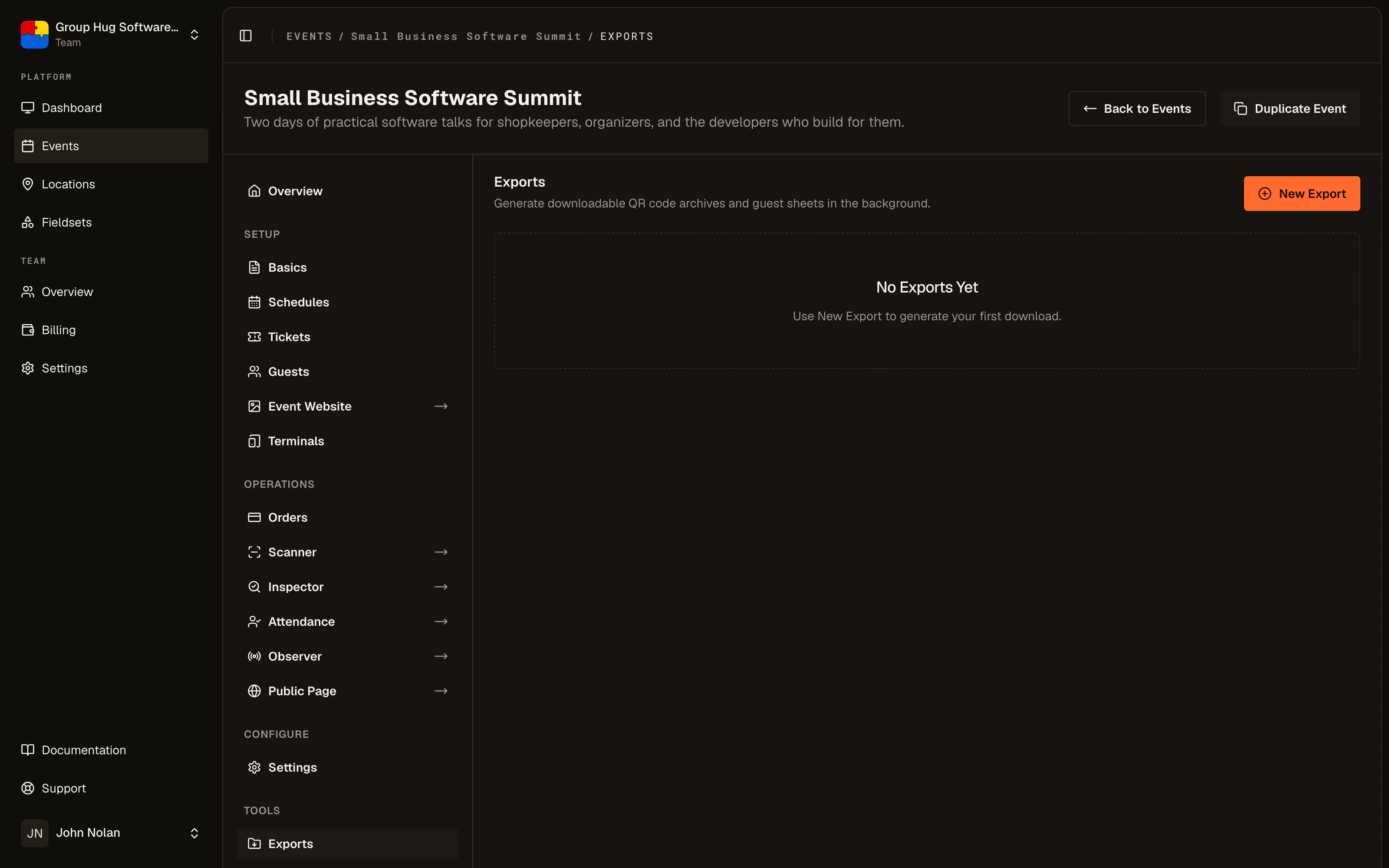
From the event sidebar, under Tools, choose Exports. The Tools menus on the guest list and on Orders also link straight here.
The export types
QR Codes (PNG) produces a zip of QR images, one per guest. This is the format for dropping codes into a badge template in a design tool, or for anything that expects raster images.
QR Codes (SVG) produces the same set as vectors. Use this for print: an SVG scales to any badge size without going soft, which is what a commercial printer will ask for.
Guest Sheet (ZIP) produces a CSV per ticket tier, zipped together. Each sheet includes:
first_name,last_name,emailticket, the tier nameqr_code_url, the address of that guest's codesource, how they registeredregistration_dateamount_paidandpayment_statusarchived- one column per registration question on that tier
- one
checked_in:column per schedule, holding the time they were checked in
That last group is what makes the guest sheet the file to reach for after an event: attendance per session, per guest, in one row.
Order Sheet (CSV) produces a single CSV of every order, one row per order line. An order for two tickets is two rows that share the same order_reference, so the sheet can be filtered or pivoted by order or by attendee. Each row carries:
- the order:
order_reference,order_id,order_status,placed_at,completed_at,order_source,currency - the billing contact:
billing_first_name,billing_last_name,billing_email - the payment:
payment_method, andpayment_reference, the gateway's own id for the payment - the order's money:
order_total,order_collected,order_refunded,order_net,order_outstanding - the line:
line_number,attendee_first_name,attendee_last_name,attendee_email,ticket,quantity,unit_price,line_amount,line_collected,line_refunded,line_status
The order's columns repeat on each of its rows, so sum the line_ columns rather than the order_ ones when you total a sheet. Amounts are plain numbers in the order's own currency, with no thousands separator, so a spreadsheet can add them up as they are. Abandoned checkouts are left out, the same as on the Orders page.
Only a team administrator can request, see or download an order sheet. It holds every buyer's billing details, which is why editors cannot open Orders either.
Requesting an export
Choose New Export, pick the type, and confirm. The job is queued and the page shows it with a status:
- Pending, waiting to start
- Processing, being built
- Completed, ready to download
- Failed, something went wrong
Refresh the page to see it move. Large events take longer, and there is no need to sit and watch.
Downloading
A completed export has a download link. The file is a zip for every type but the order sheet, which is a single CSV.
Deleting exports
Exports do not tidy themselves up. Delete the ones you no longer need, particularly guest sheets and order sheets, because an export is a file containing your attendees' personal details sitting outside the application.
Attendance for one schedule
For a single session's attendance rather than the whole event, the door desk has a direct CSV download with first_name, last_name, email, ticket and checked_in_at.
That is usually the faster answer when a timing provider or a sponsor wants one session's list.
Last reviewed August 21, 2026