The event lifecycle.
Draft, published, completed, cancelled, and what each one changes.
An event moves through phases, and the platform changes what it shows you at each one. Knowing which phase you are in explains most of what the Overview page does.
The four statuses
Every event carries one of four statuses.
Draft is where an event starts. You are still building it, the public event page shows a not-found page, and the Overview shows you a setup checklist until you publish.
Published means the event is out in the world and being run. A published event also appears on your team website, if your team has published one.
Completed means it happened. The Overview switches to a recap, and guest records freeze so the history cannot be edited after the fact.
Cancelled means it is not happening. Like completed, it closes the event and freezes its records.
Completed and cancelled events are closed. On a closed event, guest records are locked: you cannot add, edit, import or delete guests. That is a feature, not an obstacle. Once an event is over, its guest list is a record of what happened, and it should not quietly change afterwards.
What the Overview shows
The Overview has three faces, and which one you get follows the phase the event is in.
While you are still building it
A draft event shows a setup checklist rather than charts. There is nothing to plot yet, so the page spends the space telling you what is left to do instead.
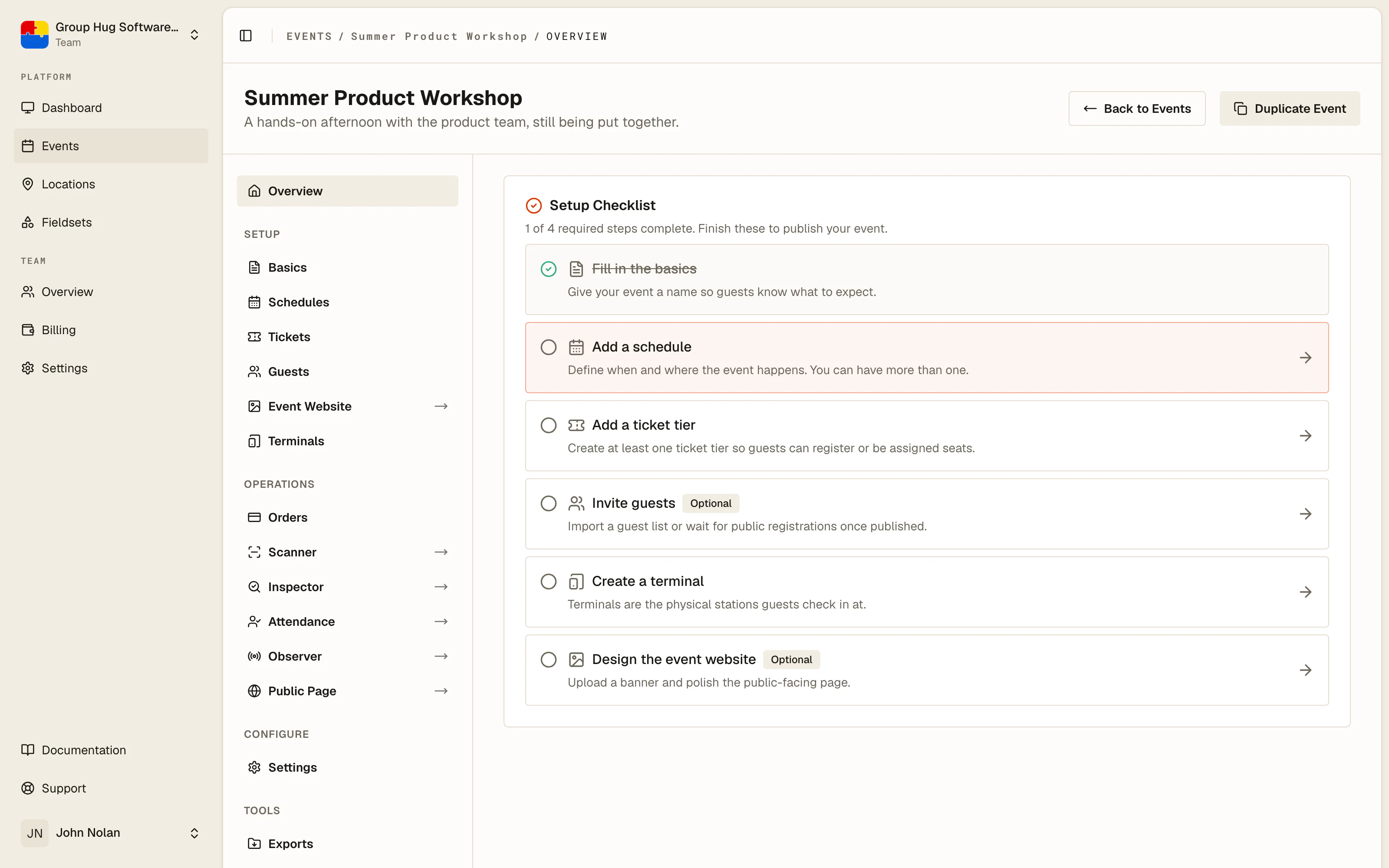
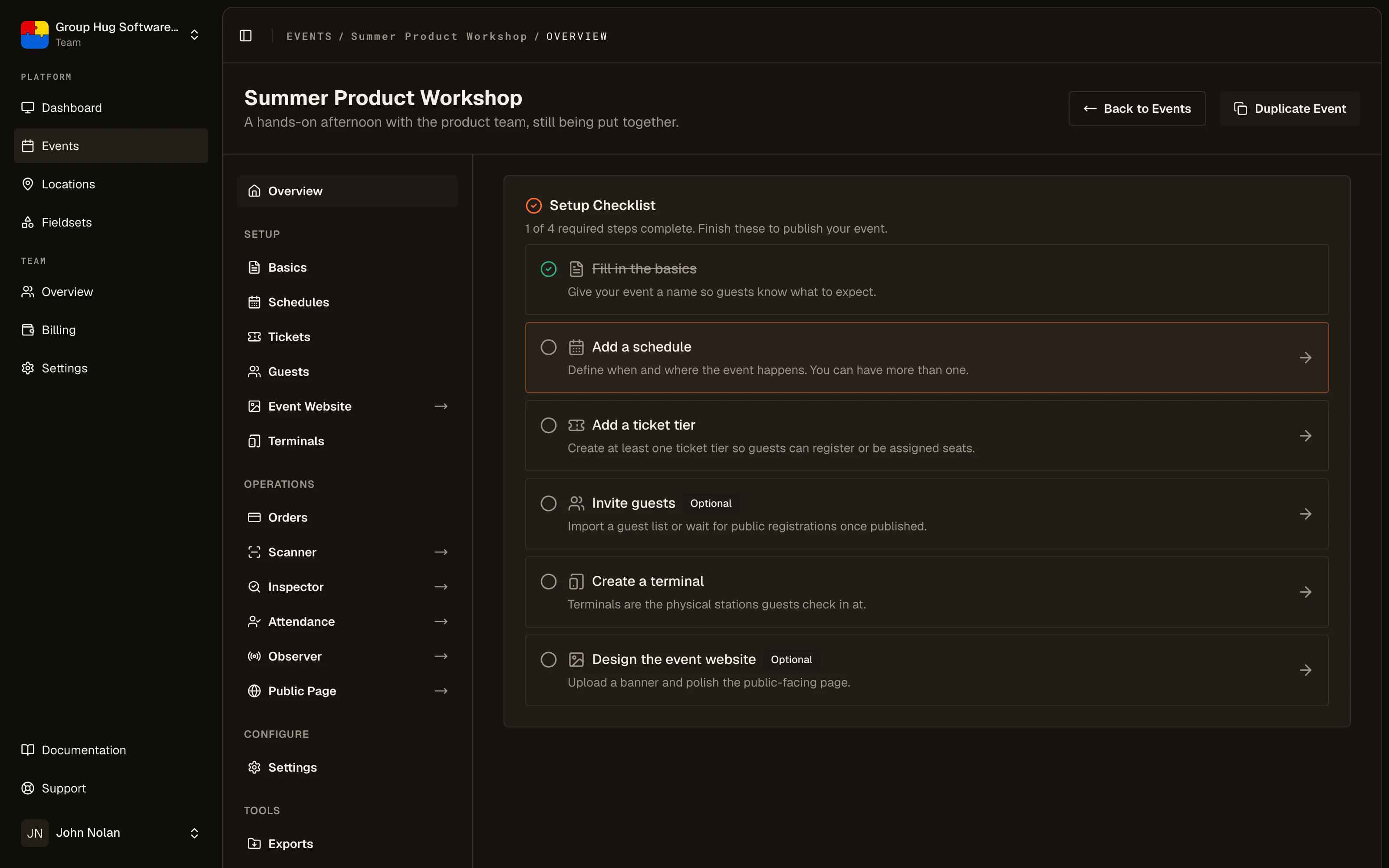
The checklist covers the basics, a schedule, a ticket tier, guests, a terminal, the event website, enabling registration, and publishing. Five of those are required: basics, schedule, ticket tier, terminal and publishing. Guests are optional because most events fill up from public registration rather than an import, the event website is optional because plenty of events are promoted somewhere else entirely, and registration is optional because an invite-only event never opens it. The page switches to the charts below once you publish, or once one of the event's sessions is under way.
While it is running
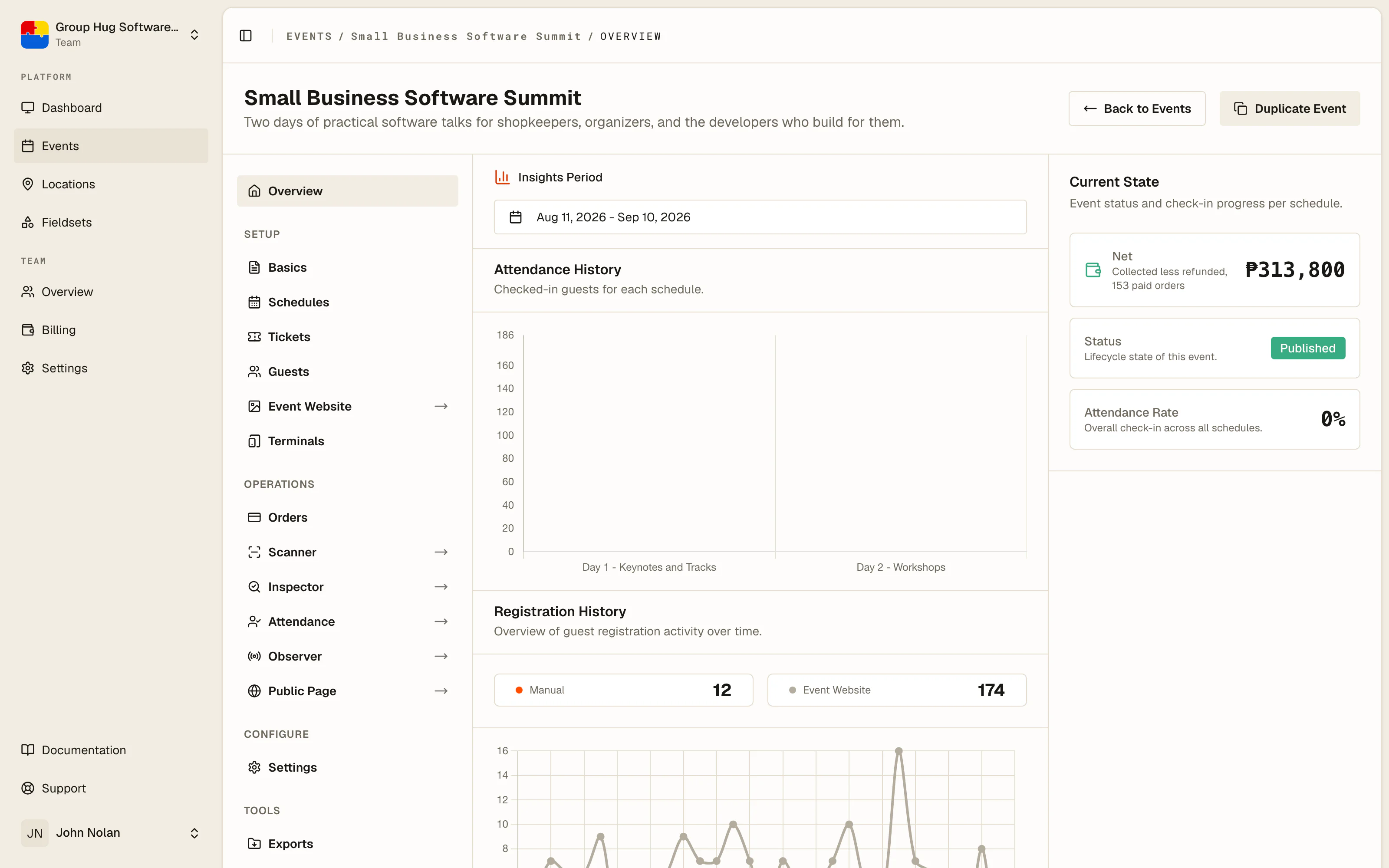
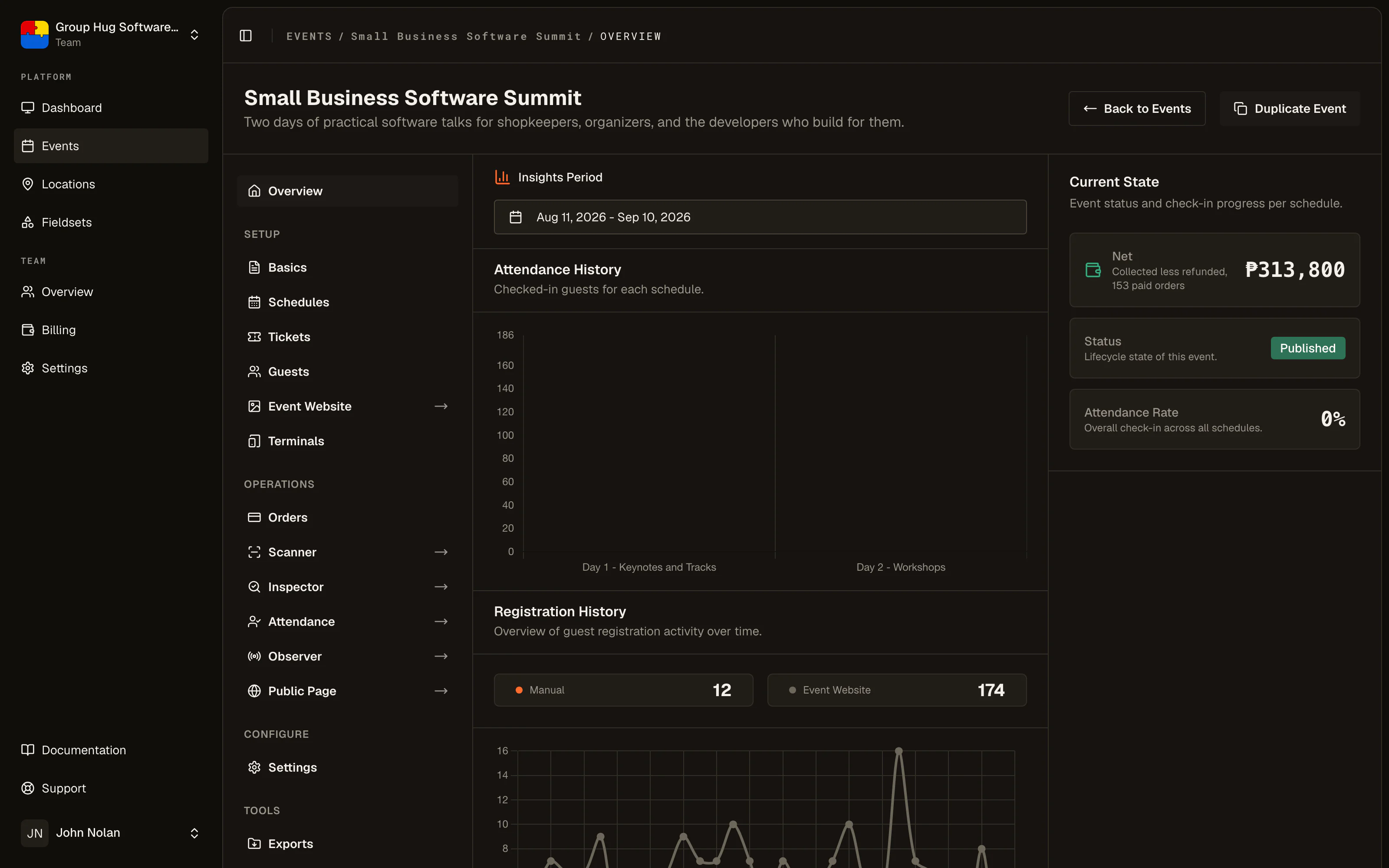
Once the event is published, the Overview shows its numbers:
- Insights period, a date range you choose, which every chart below respects.
- Attendance history, checked-in guests per schedule.
- Registration history, sign-ups over time, split by how they arrived.
- Current state, the event's status and its overall attendance rate.
After it has happened
Once an event is marked completed, the page switches to a recap: the summary you want afterwards, of who came and how many, per session.
What actually opens and closes registration
Two things decide whether the public can register. The event must be published, because a draft's page shows a not-found page. And registration must be turned on in Settings, where new events start with it off.
That distinction matters on the day: if you need to stop sign-ups right now, turn off registration in Settings. See opening and closing registration.
Settings is also where you keep an event off your team website: turn off Show on team website. Completed events stay listed as past events, and cancelled events drop off.
Likewise, if you need to stop check-ins for a session that has finished, turn off that schedule's check-in switch rather than changing the event's status.
After the event
Once an event is complete, the useful things to do are:
- Read the recap on the Overview page.
- Export the guest sheet and attendance data for your own records or for a sponsor.
- Duplicate the event to set up the next one, which carries your tiers, terminals and page design but none of the guests.
Last reviewed October 7, 2026